
Sponsored Content

Lifetime Member
Send PMDeBerry, TX - USA
Joined: 2/27/2002
Posts: 1006
Vette(s): 1971 383 Stroker- mille miglia red...5 speed
How do you upload a file to your personal homepage when you get an error message that the file is too large???
I know the voices aren't real, but they have some pretty cool ideas... 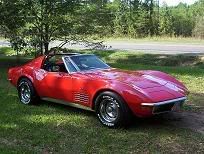
Be the first to like this post
Sign In to Like this post
Sign In to Like this post
SPONSOR AD:: (Our Sponsors help support Vette Registry)

Lifetime Member
Moderator
Send PMModerator
Duncanville, TX - USA
Joined: 11/8/2003
Posts: 22742
Vette(s): #1-1974 L-48 4spd Cp Med Red Metallic/Black deluxe int w/AC/tilt/tele./p/w-p/b/
Am-Fm/map light National/Regional/Chapter NCRS "Top Flight"
#2-1985 Bright Red/Carmine Cp.L-98/auto
Member: NCRS, NCRS Texas, Corvette Legends of Texas
You'll need to re-size the image, and/or make sure it is a "jpeg" file, and not a "bitmap" file.
There are a couple of threads on re-sizing here in the "Support" forum, if ya need help re-sizing.
Also, make sure the name of the file is usable...in other words, no spaces, or - characters...
There are a couple of threads on re-sizing here in the "Support" forum, if ya need help re-sizing.
Also, make sure the name of the file is usable...in other words, no spaces, or - characters...
Joel Adams
C3VR Lifetime Member #56 
My Link 
(click for Texas-sized view!) NCRS
"Money can't buy happiness -- but somehow it's more comforting to cry in a CORVETTE than in a Kia"
Be the first to like this post
Sign In to Like this post
Sign In to Like this post

What Joel said - and a word of direction also. Images should be uploaded to your Personal File Folder. The Personal Home Page area is primarily for storing files for putting together a personal web page - which not too many folks have done (that I'm aware of anyway).
 Jim Olson


 "The Toys"...!!! Save the Wave!
Be the first to like this post
Sign In to Like this post
Sign In to Like this post
Lifetime Member
Send PMDeBerry, TX - USA
Joined: 2/27/2002
Posts: 1006
Vette(s): 1971 383 Stroker- mille miglia red...5 speed
Thanks, guys. It's a start, but I'm prolly gonna need a wee bit more help. Technically challenged, don't you know.  Work on it later.
Work on it later. I know the voices aren't real, but they have some pretty cool ideas...
Be the first to like this post
Sign In to Like this post
Sign In to Like this post
Lifetime Member
Moderator
Send PMModerator
Duncanville, TX - USA
Joined: 11/8/2003
Posts: 22742
Vette(s): #1-1974 L-48 4spd Cp Med Red Metallic/Black deluxe int w/AC/tilt/tele./p/w-p/b/
Am-Fm/map light National/Regional/Chapter NCRS "Top Flight"
#2-1985 Bright Red/Carmine Cp.L-98/auto
Member: NCRS, NCRS Texas, Corvette Legends of Texas
Resizing Photos (in Windows)
(click here to view original thread)
by Adam Wartell
This may be of use to people looking to resize image files for use here on C3VR:
Try this...
If you are using Windows, depending on what version of it you have, you can use "Paint":
* It should be on the Start Menu under Programs/Accessories.
(You can also chose "Run" from the Start Menu, then type in "mspaint" and press enter).
1. Start Paint
2. On the "File" menu, select "Open"
3. Browse to the location of the file you want to resize, and select it by double-clicking it (or click it once, then click the "Open" button).
4. On the "Image" menu, select "Stretch/Skew".
5. In the "Stretch" box, enter 50 for both the Horizontal and Vertical Values. Leave the other values alone, then click "OK"
6. On the "Image" menu, select "Attributes".
7. Make sure that "Pixels" is selected in the "Units" box.
8. Look at the value in the "Width" box. You want it to be between 400 and 500. (And the "Size on Disk" less than 500,000 bytes).
* If the width is still higher than 500, click "Cancel" then go back to step 5 and try again. (You may need to use a number lesser or greater than 50 to get it right. You should get the hang of it pretty quick).
* If the width is between 400 and 500, then click Cancel and go on to step 9.
* If the width is less than 400, you may want to click Cancel, then on the "Edit" menu, select "Undo". Then go back to step 5 and use a number higher than 50.
9. On the "File" menu, select "Save As..." DO NOT SELECT "SAVE" or you will overwrite your original file!!!
10. In the "Save As" box, enter a new file name, make sure the location is correct, make sure the Save As Type is .JPG, then click Save.
If you have "Microsoft Photo Editor", try this:
* You should find it on the Start menu, under Program/Microsoft Office/Microsoft Office Tools.
1. Start Microsoft Photo Editor.
2. On the "File" menu, select "Open"
3. Located the file you want to open, then double-click it (or click it once, then click "Open")
4. On the "Image" menu, select "Resize..."
5. On the Resize box, make sure "Units" is set to "Pixels"
6. Enter 400 in the Width box.
7. Click "OK"
8. On the "File" menu, select "Save As..." (DO NOT SELECT "SAVE" or you will overwrite your original file!!)
9. Enter a name for the file, select a location, , make sure the Save As Type is .JPG, then click "Save".
hth
(click here to view original thread)
by Adam Wartell
This may be of use to people looking to resize image files for use here on C3VR:
Try this...
If you are using Windows, depending on what version of it you have, you can use "Paint":
* It should be on the Start Menu under Programs/Accessories.
(You can also chose "Run" from the Start Menu, then type in "mspaint" and press enter).
1. Start Paint
2. On the "File" menu, select "Open"
3. Browse to the location of the file you want to resize, and select it by double-clicking it (or click it once, then click the "Open" button).
4. On the "Image" menu, select "Stretch/Skew".
5. In the "Stretch" box, enter 50 for both the Horizontal and Vertical Values. Leave the other values alone, then click "OK"
6. On the "Image" menu, select "Attributes".
7. Make sure that "Pixels" is selected in the "Units" box.
8. Look at the value in the "Width" box. You want it to be between 400 and 500. (And the "Size on Disk" less than 500,000 bytes).
* If the width is still higher than 500, click "Cancel" then go back to step 5 and try again. (You may need to use a number lesser or greater than 50 to get it right. You should get the hang of it pretty quick).
* If the width is between 400 and 500, then click Cancel and go on to step 9.
* If the width is less than 400, you may want to click Cancel, then on the "Edit" menu, select "Undo". Then go back to step 5 and use a number higher than 50.
9. On the "File" menu, select "Save As..." DO NOT SELECT "SAVE" or you will overwrite your original file!!!
10. In the "Save As" box, enter a new file name, make sure the location is correct, make sure the Save As Type is .JPG, then click Save.
If you have "Microsoft Photo Editor", try this:
* You should find it on the Start menu, under Program/Microsoft Office/Microsoft Office Tools.
1. Start Microsoft Photo Editor.
2. On the "File" menu, select "Open"
3. Located the file you want to open, then double-click it (or click it once, then click "Open")
4. On the "Image" menu, select "Resize..."
5. On the Resize box, make sure "Units" is set to "Pixels"
6. Enter 400 in the Width box.
7. Click "OK"
8. On the "File" menu, select "Save As..." (DO NOT SELECT "SAVE" or you will overwrite your original file!!)
9. Enter a name for the file, select a location, , make sure the Save As Type is .JPG, then click "Save".
hthJoel Adams
C3VR Lifetime Member #56
My Link
(click for Texas-sized view!) NCRS
"Money can't buy happiness -- but somehow it's more comforting to cry in a CORVETTE than in a Kia"
Be the first to like this post
Sign In to Like this post
Sign In to Like this post

Lifetime Member
Vette Registry Founder
Moderator
Send PMVette Registry Founder
Moderator
Eagleville, PA - USA
Joined: 11/1/2001
Posts: 27648
Vette(s): Used to own a 1979 Corvette now owned by JB79
One of the things on my "to-do" list is to make this resizing automatic for uploads to your PFF and PHP areas. I've already done it in the Signature Photo Upload, however there is still a 1MB original file size max on that. I'll look to increase that to maybe 5MB. In the meantime the suggestions above are good ones. Also, in the past, Norsky and Adams' Apple have been known to take pictures from people via email, resize them for them and email them back. If you ask nice, they could probably do that for you.

Be the first to like this post
Sign In to Like this post
Sign In to Like this post
in Forum: Vette Registry Support/Issues/Comments
Sponsored Content